
Data Backup Protection: A Small Business Guide
A spreadsheet full of contacts, a cloud folder of invoices, calendar appointments in another app, and follow-ups kept in your head is not a backup strategy. It's a collection of failure points. A stolen laptop, a bad sync, a deleted account, or ransomware can leave a freelancer unable to reach client records when work needs to continue.
Data backup protection means more than keeping an extra copy somewhere. It means maintaining clean, separate, recoverable versions of your contacts, deals, invoices, emails, notes, and calendar data, then proving that you can restore them. For a freelancer or micro-business, the practical answer isn't an enterprise platform nobody configures. It's a small set of automated controls and a routine you'll maintain.
Table of Contents
- When a Freelancer Loses Everything in One Afternoon
- What Data Backup Protection Actually Means
- The Core Controls That Keep Your Data Safe
- Choosing the Right Backup Setup for a Small Business
- Defending Your Backups Against Ransomware and Human Error
- A Practical Backup Routine You Can Maintain Weekly
- Putting It Together and Protecting Your CRM Data
When a Freelancer Loses Everything in One Afternoon
It's Monday afternoon at a co-working space. A freelance consultant opens her laptop between client calls and finds a ransom note instead of her project files. Every file extension has changed. Her contracts, tax records, project notes, and two years of client contacts inside the CRM are unreachable.
She can still access email, but the information needed to answer clients is scattered across old messages and memory. She can't see which proposals were active, which invoices were paid, or which prospects expected a follow-up. The technical incident quickly becomes a business problem, with lost billable hours and damaged trust.
A designer's failure can look less dramatic. She leaves her bag in a rideshare and loses the only laptop containing a local client list, invoice attachments, and appointment notes. There's no offsite copy, no export stored elsewhere, and no tested way to rebuild the workspace. The laptop is replaceable. The working history isn't.
Practical rule: A backup that exists only on the device you use every day is not protection against device loss.
Freelancers often buy complicated tools, configure them once, and forget to check whether they're still running. A lightweight routine beats a powerful system that fails. Start with an automated copy, keep a separate version outside the primary workspace, protect the backup credentials, and restore something regularly. The rest of this guide applies those decisions to the CRM data that keeps a small business operating.
What Data Backup Protection Actually Means
Data backup protection has three layers. The first is an accessible copy, a complete version of your data kept somewhere you can reach when the original is deleted, corrupted, encrypted, or unavailable. A synced cloud workspace may cover this layer, but synchronization alone can copy a mistake just as efficiently as it copies a good file.
The second layer is separation. Keep multiple copies on different timelines and in different locations so one incident doesn't remove every version. For a small CRM, that might mean the live cloud workspace, a scheduled encrypted export, and an offsite storage location with older versions retained.
The third layer is verified recovery. Encryption, versioning, immutable storage, and access controls protect the copies, but a restore test proves whether they contain usable data. A weekly export you've never opened is an assumption, not a recovery plan.

For a freelancer, the definition should stay concrete:
- Accessible copy: Your CRM records remain available through the primary service or workspace.
- Separate copy: You create a scheduled export and store it away from the daily account.
- Recovery proof: You import or open a test copy and confirm that contacts, invoices, attachments, and calendar information are usable.
NIST guidance for ransomware recovery emphasizes offsite or isolated copies, immutability, and verification, because an online and mutable backup can be deleted or encrypted with production data. The EPA backup systems guidance also reflects the practical logic of the 3-2-1 rule, three copies, two media types, and one offsite copy.
Data backup protection isn't a product category you can check off once. It's a set of settings, credentials, schedules, retention rules, and restore habits that work together.
The Core Controls That Keep Your Data Safe
The five controls below prevent different failures. Don't treat them as competing options. A local drive may give you a fast restore, while immutable cloud storage protects against ransomware. Versioning may recover a deleted invoice, while encryption limits exposure if a storage account is compromised.
| Control | Failure Mode It Prevents | Recommended Setting |
|---|---|---|
| 3-2-1 storage | One incident destroys every copy | Keep three copies across two media types, with one copy offsite |
| Encryption | Stolen storage or intercepted backup traffic exposes records | Use TLS in transit and AES-256-based encryption at rest |
| Versioning | A bad sync or deletion overwrites the usable file | Retain historical versions rather than only the latest copy |
| Retention | Recovery points disappear before you notice a problem | Keep a window that covers normal mistakes and delayed discovery |
| Restore testing | An empty, incomplete, or corrupted backup fails during recovery | Restore a random file weekly and run a broader drill quarterly |
The 3-2-1 rule is the foundation. Production data counts as one copy, but you still need two additional copies, on two forms of storage, with one held offsite. For CRM data, a live workspace, an encrypted local export, and an offsite immutable copy are more useful than three folders on the same laptop.
Encryption needs two paths. AWS guidance recommends TLS for backup traffic in transit and AES-256-based services such as AWS KMS or CloudHSM for stored backup data, as described in the AWS data protection documentation. Use independent key management and least-privilege access. If production and backup accounts share credentials, one stolen login can put both environments at risk.
Versioning handles ordinary mistakes. A contractor overwrites an invoice, a contact gets deleted, or a sync process replaces a good export with a damaged one. Historical versions give you a point to roll back to instead of forcing a manual reconstruction.
Retention should match your business reality. Keep enough history to discover a mistake after it happened, not just the most recent successful upload. The right window depends on how often you work, how quickly you notice errors, and how much historical client information you must preserve.
Testing exposes the uncomfortable truth. In the 2025 backup and recovery report, more than 60% of organizations believed they could recover from downtime within hours, but only 35% could. The same report found that 25% test disaster recovery once per year or less, while 51% spend 10 or more hours per week managing backups. A restore test turns backup protection from a storage claim into evidence.
Choosing the Right Backup Setup for a Small Business
Small operators usually choose among four practical setups. None is perfect, and you don't need all of them. Pick one primary path that runs automatically, then add a secondary layer that survives failure of the first.
| Option | Typical Cost | Best Use Case | Main Risk |
|---|---|---|---|
| USB external drive | Hardware purchase, often a one-time expense | Fast recovery of local files and exports | It can be stolen, destroyed, or encrypted if it stays connected |
| Consumer cloud sync folders | Subscription pricing varies by provider and storage plan | Simple file access across devices | Sync can replicate deletion, corruption, or ransomware |
| Managed backup services | Subscription pricing varies by service and device coverage | Hands-off protection for laptops and workstations | Large restores depend on internet speed and provider workflows |
| CRM-native exports | Often included or priced with the CRM plan | Portable protection for contacts, deals, invoices, and notes | Exports may omit attachments, settings, or calendar details |
A USB SSD is fast and convenient for a laptop recovery. It's also a poor ransomware defense if it remains plugged in and writable. Disconnect it after the backup completes, store it away from the laptop, and rotate another copy when practical.
Cloud sync folders from OneDrive, Google Drive, or Dropbox are useful working spaces, not complete backup systems. Turn on file history and recovery controls, and don't confuse “available on another device” with “protected from account takeover.”
Managed services such as Backblaze, Carbonite, and iDrive reduce the chance that you'll forget to back up the laptop. They're sensible for freelancers who don't want to manage schedules, but you still need to check retention, recovery methods, and whether the service protects application data or only files.
CRM-native CSV or JSON exports create a portable safety net. They're particularly useful when you need to move records between tools or recover from vendor access problems. Keep the export encrypted and store it separately from the CRM account.
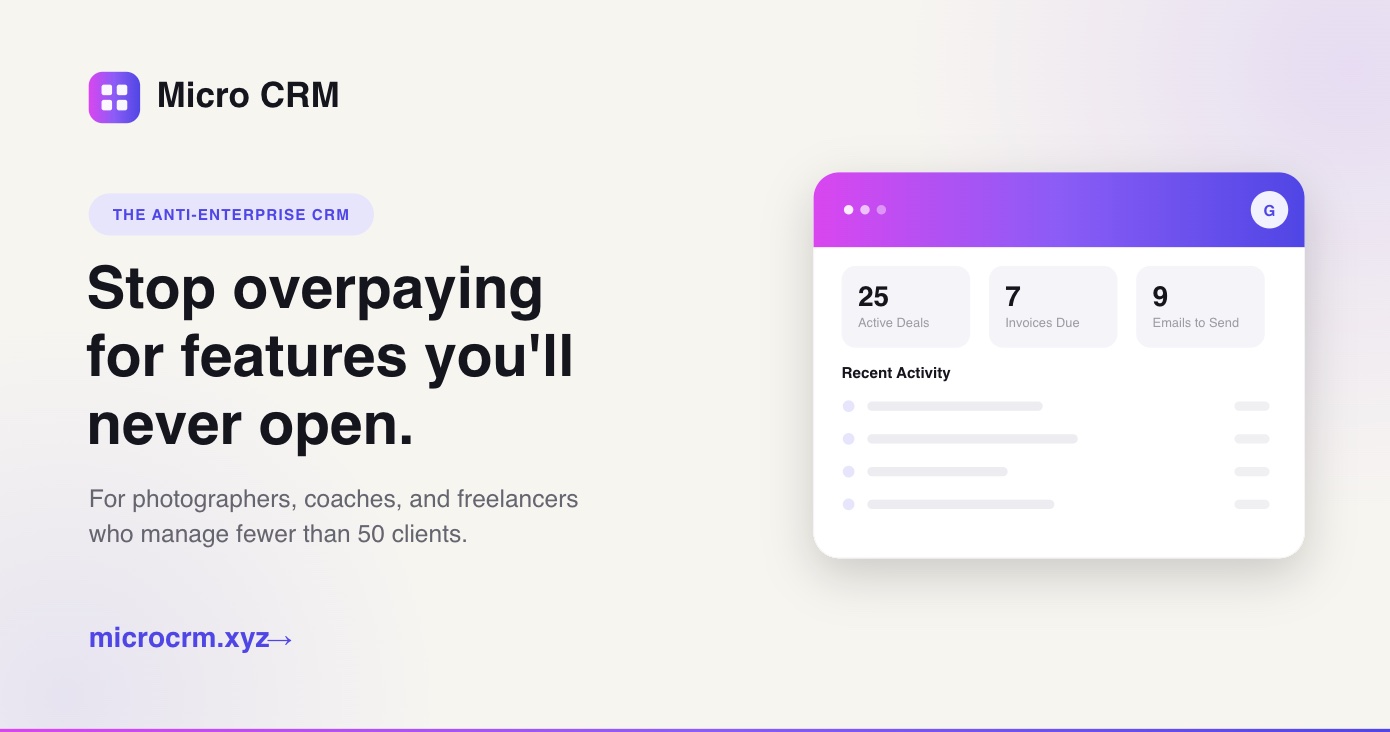
A lightweight workspace such as MicroCRM can centralize contacts, deal stages, invoicing, email follow-ups, and appointment scheduling, reducing the number of places you must protect. That complements, rather than replaces, an independent export. For related workflow planning, review availability management for small teams.
My recommendation is straightforward: use a managed device backup or protected cloud destination as the primary layer, then schedule CRM-native exports as the secondary layer. Don't spend weeks comparing tools while your only copy remains a live spreadsheet.
Defending Your Backups Against Ransomware and Human Error
Attackers increasingly target backup locations because they know recovery data is valuable. A 2025 data-loss report found that 85.6% of data-loss incidents happen in cloud storage, while another 2025 source reported that 94% of ransomware attacks attempt to compromise backup locations, according to Infrascale's data-loss statistics. Your backup account needs stronger separation than an ordinary file folder.
Ransomware needs an isolated target
Keep at least one copy offline or in immutable cloud storage. AWS S3 Object Lock and Backblaze B2 retention controls are examples of mechanisms that can prevent changes during a defined retention period. Never map an external backup drive permanently, and don't give your everyday user write access to every backup repository.
Create a backup-only account with a unique password. Give it only the permissions required to create or read backups, and reserve delete permissions for a separate administrative identity. If ransomware controls your laptop session, it shouldn't automatically control the clean copy.
Stolen credentials require a second barrier
Turn on TOTP or hardware-key two-factor authentication for the backup console. Review connected applications and active sessions regularly, then remove anything you no longer recognize. The MicroCRM authentication and security guidance is a useful reminder that account protection and backup protection are connected, because a stolen CRM login can expose the data you're trying to preserve.
Phishing emails remain a common entry route for ransomware at small businesses. Don't open unexpected invoice attachments, approve unfamiliar sign-in prompts, or reuse the password from your email account on the backup service.
Human mistakes need history
Enable file versioning in Dropbox, OneDrive, or Google Drive, and retain enough history to reverse an overwritten invoice or deleted contact. A versioning window of 30 to 60 days is a practical setting for many small workspaces, but check the provider's actual plan limits before relying on it.
A clean recovery image matters more than a fast one. Restoring quickly from an infected or incomplete backup only returns the problem to production. Scan the restore, verify the date, and confirm that the records open correctly before you treat the incident as resolved.
A Practical Backup Routine You Can Maintain Weekly
Your routine should be boring enough to complete on a busy Friday. Assign one person, even if that person is you, as accountable for checking the result. “The system handles it” isn't accountability.
Weekly five-minute check
Set this for Friday afternoon. Confirm the latest successful backup timestamp, skim the report email for warnings, and restore one randomly selected file. Open it, check its contents, and record the result.
Use this compact log:
| Date | What was verified | Person responsible | Issue found and action |
|---|---|---|---|
| [Date] | Timestamp, report, and one restored file | [Name] | [Issue or “None”] |
A failed backup should create a task, not a shrug. Check storage capacity, expired credentials, disconnected devices, and failed export jobs before the next workday.
Quarterly 45-minute drill
Schedule the drill for the first Monday of each quarter. Perform a full restore to a clean folder, test a CRM import using last month's export, rotate any external drive showing wear, and confirm that the offline copy can be reached from a different device.
Check the restore path for the information you need:
- Contacts: Names, email addresses, phone numbers, tags, and interaction history.
- Deals: Pipeline stages, values, owners, and next actions.
- Invoices: Records, PDFs, payment status, and attachments.
- Calendar: Appointments, client names, dates, and notes.
- Email activity: Logged messages, templates, and follow-up context.
Document what worked and what failed. A recovery runbook should state where the backup lives, which account can access it, how to restore it, and who makes the decision to switch back to normal operations.

The backup recovery routine video can supplement your process, but it shouldn't replace a test using your own CRM export and files.
Putting It Together and Protecting Your CRM Data
A typical lightweight CRM contains more than a contact list. Contacts sync into records, deals move through pipeline stages, emails add context, invoices include attachments, and notes preserve decisions that may never appear elsewhere. Protect each type of information through the same recovery path rather than exporting one spreadsheet and assuming the rest will follow.
Set up automated daily exports to encrypted cloud storage. Retain 30 daily versions and 12 monthly snapshots so a recent mistake and an older discovery can both have recovery points. Lock exports behind two-factor authentication, and keep the export account separate from the account used for daily CRM work.
Manual spreadsheet dumps fail because people forget them during busy weeks. A workspace that includes contacts, a Kanban pipeline, invoicing, email sequences, calendar scheduling, and reporting reduces the number of systems that need separate attention. MicroCRM is designed as a lightweight option for freelancers and small businesses that want those core workflows without the setup burden of a complex CRM.
Recovery test: Restore last week's contact export into a sandbox, confirm the field mapping, and time how long it takes to reach a usable record.
Run that test for 15 minutes each month. Check that contacts, deal stages, invoice data, and activity notes appear correctly. If the import loses fields or attachments, update the export method before an incident forces you to discover the gap.
The customer data protection guidance belongs beside your recovery runbook, not buried in a browser bookmark. Pick one backup target today, schedule the first automated export, and write the restore procedure on one page. Keep that page outside the CRM so you can still read it when the CRM account or laptop is unavailable.

A recovery-ready business doesn't ask only whether a backup exists. It asks whether the copy is separate, protected from deletion, recent enough to matter, and proven to restore. The answer should be visible in your weekly log.
Micro CRM brings contacts, deals, invoices, automated emails, follow-ups, and appointments into one simple workspace, giving freelancers fewer disconnected systems to protect and manage. Visit Micro CRM to start on the free plan, with no credit card required.