
Export Contacts in Gmail: The Complete Step-by-Step Guide
If your client details live in Gmail threads, a half-finished spreadsheet, and a few sticky notes, the problem isn't finding another folder. It's moving those contacts into a system you'll keep updated. That's why export contacts in Gmail becomes less about a file download and more about getting out of inbox archaeology and into a cleaner workspace, with the option to pair that export with a lightweight CRM such as MicroCRM and its simple setup flow.

Table of Contents
- From Gmail Chaos to Organized Client Management
- How to Export Your Google Contacts
- Choosing the Right File Format for Migration
- Importing Contacts into MicroCRM
- Validating Large Datasets and Avoiding Data Loss
- Streamlining Your Freelance Business Workflow
From Gmail Chaos to Organized Client Management
A freelancer can have a full pipeline and still run client admin like it's trapped in 2014. The lead is in one email thread, the phone number is in another, and the last invoice sits in a spreadsheet that nobody trusts anymore. Even when the work is going well, the back office often feels improvised.
That's where a contact export earns its keep. Google Contacts lets you move records out of Gmail's orbit, which is useful when you're tired of searching through old messages to remember who said what. A clean export turns scattered correspondence into a portable contact set you can review, sort, and import into a unified workspace.
Practical rule: If you can't find a client's phone number without searching three places, the workflow is already costing you time.
For small teams and solo operators, the value isn't the file itself. It's the shift from reactive searching to proactive management. Once contacts are centralized, it gets easier to connect a person's details with deals, invoices, follow-ups, and appointments instead of treating each task like a separate memory test.
A lightweight CRM can help here because it keeps the basics in one place without the overhead of a sprawling enterprise system. That matters when your business is moving fast and you'd rather spend time serving clients than reconciling notes across tabs.
Why the export comes before the cleanup
Email inboxes collect history, but they don't organize it. Exporting gives you a stable starting point, especially if you've been relying on autocomplete and old threads for years. It also helps you separate real client contacts from one-off interactions that don't belong in your active list.
How to Export Your Google Contacts
Open Google Contacts first, not Gmail itself. Google's documented path is to select the records you want, choose More actions, then Export, and save the file in the format you need. You can select one contact, multiple contacts, or all contacts, which is useful when you only want to move a subset of active clients instead of the entire address book.
The most common mistake is exporting the wrong contact bucket. Google distinguishes between My Contacts, which are the records you added manually, and All Contacts, which also includes contacts saved automatically from Gmail interactions. If your historical client list matters, All Contacts is often the safer choice because it preserves more of the actual working relationship trail.
Use the export to keep the data portable, not just backed up. Google's contact data can include much more than names and email addresses, so a proper export may carry notes, phone numbers, company details, relationships, websites, events, and other stored metadata. That extra context is often what makes the difference between a basic address list and something usable for follow-up.
Export the subset you actually need first. A small, labeled sample is easier to inspect than a full archive.
A fast way to stay sane is to treat the export as a migration step, not a finish line. Once the file is downloaded, check whether the destination system expects a spreadsheet-style import or a device-friendly address-book format. That one decision prevents a lot of cleanup later.
The video below is useful if you want a visual walk-through of the same workflow.
Select the right records before you export
If you only need current clients, export only that label or group. If you're rebuilding a complete contact base, use the broader export path so you don't miss older but still relevant records. The point is to move the right set of people, not to drag every stale interaction into a new system.
Keep metadata in mind
Google's export can include photos, group membership, instant messaging details, addresses, organizations, relationships, custom fields, notes, and more. That richness is helpful, but it also means the receiving app needs to understand what to do with all of it. A file can be technically correct and still become messy if the import target doesn't map those fields well.
Choosing the Right File Format for Migration
The export format should match the destination system. Google Contacts offers Google CSV, Outlook CSV, and vCard, and each one serves a different target better than the others. If you choose the wrong format, labels and fields can land in odd places during import, which creates cleanup work you didn't need.
| Format | Best For | Key Characteristics | CRM Compatibility |
|---|---|---|---|
| Google CSV | Another Google Contacts account or spreadsheet-based cleanup | Built for Google-to-Google portability and easy review in a spreadsheet | Good for migration prep, not always clean in third-party CRMs |
| Outlook CSV | Outlook and many other contact managers | Broadly recognized by business software and contact tools | Often the safest CSV choice for general CRM imports |
| vCard | Apple Contacts, phones, and vCard-oriented address books | Common across Apple and many email providers | Best for device ecosystems, sometimes less convenient for pipeline tools |
For a spreadsheet-first workflow, CSV is usually the easiest starting point. For a phone or Apple Contacts import, vCard is often the better fit. Google Takeout also exports contacts as vCard, which aligns with the format many email providers and address books already understand.
The important part is not the file extension alone, it's the receiving app's field mapping. A lightweight CRM may only support part of Google's fuller contact schema, so unsupported details shouldn't disappear without a trace. Keep those fields in a note, archive, or backup copy if you know they matter later.
Practical rule: Match the format to the destination, not to what looks familiar in the download menu.
If you're moving between systems and want a simple mental model, think like this, Google CSV for Google-heavy cleanup, Outlook CSV for general CRM migration, and vCard for phone-centric address books. That one decision reduces the odds of broken names, odd addresses, and missing context.
Importing Contacts into MicroCRM
Once the file is ready, the import should feel boring. That's a good sign. In a setup like MicroCRM, the value is in getting contacts out of scattered tools and into one workspace where they're easier to act on, instead of forcing you into a heavy enterprise process.
Start by importing the file that matches your export choice, then map the fields carefully. Names, emails, phone numbers, organizations, and notes should land where you expect them to land. If a field doesn't have an obvious home, don't force it into the wrong one just to complete the upload.
After the import, the contact list should be ready for real work, not just storage. A unified CRM makes it easier to connect a person with a deal stage, a follow-up task, or an invoice without switching apps. That's the practical advantage of moving away from spreadsheets that never quite stay current.
The operational detail that catches many teams is archive access. Workspace administrators may also disable Takeout, meaning users can be unable to use the archive route even though direct Contacts export remains the operational path. In other words, the direct export from Google Contacts is the path you can count on more reliably when you need to move data now.
If you're deciding what a simpler CRM should feel like, this is a good benchmark: quick import, clear field mapping, and no wasted setup time. A useful overview of that approach appears in this guide to contact management CRM software.
Keep the import readable
Use the import preview to check obvious mismatches before you commit. If a company name ends up in a phone field or a note gets squeezed into a label column, fix it before the full load finishes. That small pause saves a lot of cleanup later.
Let the imported data do more than sit there
A contact list is only useful when it supports action. Once the records are inside a unified system, you can pair them with deals, invoices, and appointments instead of leaving them as passive entries in a database.
Validating Large Datasets and Avoiding Data Loss
Large exports deserve a safety check before they become your new source of truth. A technically successful download can still hide problems if the destination strips out notes, splits names badly, or mishandles phone formatting. The safest move is to export a small, labeled test set first, then inspect it before you process the full address book.
The verification pass should be simple and ruthless. Look for UTF-8 text, quoted commas, multiline notes, international phone numbers, duplicate emails, and multiple addresses. Those are the places where imports usually reveal themselves as messy, even when the file looked fine on download.
Practical rule: Don't trust a full import until a sample proves the fields survive the round trip.
A short checklist helps keep the process under control:
- Export a test group first. A small labeled subset makes mistakes easier to spot.
- Check duplicates early. Normalized email should be the primary key, then phone or name if needed.
- Verify representative records. Confirm that names, emails, phone numbers, and notes still look right.
- Keep a rollback copy. If the import behaves badly, you want an easy way back.
Google's import limits also matter here. An import operation can't contain more than 3,000 contacts at once, and Google lists a maximum of 25,000 contacts for an account. Those thresholds come from Google's own contact import guidance, and they're a reminder that large address books may need to be split before they move cleanly between systems. See the official contact import limits in Google's contacts help.
Google also publishes a broad contact schema that can include photos, group membership, IM details, organization data, relationships, websites, events, custom fields, notes, locations, birthdays, hobbies, gender, occupation, priority, sensitivity, billing information, and other stored attributes. A lightweight CRM may not support every one of those fields, so unsupported data should be preserved in an archive or a note instead of being lost without warning.
For a practical backup and protection workflow, a detailed reference is available in this data backup guide.
Test, inspect, then scale
The point of the sample isn't perfection. It's confidence. Once the test import looks clean, the full move becomes much less risky because you've already seen how the destination handles real contact data.
Protect relationship context, not just rows
A contact list is more than a spreadsheet of names. If notes, tags, or relationship details matter to your work, make sure they survive the trip or get copied into a place you can use later.
Streamlining Your Freelance Business Workflow
Exporting contacts from Gmail solves a data problem, but the bigger win is operational. Once the contacts are centralized, it becomes easier to manage follow-ups, invoices, and appointments without bouncing between half a dozen apps. For freelancers and small teams, that's often the difference between staying organized and staying busy.
The advantage is a cleaner working rhythm. A unified CRM can keep contacts, deal stages, invoicing, automated emails, and a calendar in one place, which reduces the friction that usually creeps in when each task lives in a separate tool. That's also why a simpler system often beats a more complex one for teams that don't need layers of configuration.
If your client list is still under control but your process feels scattered, the right move is usually not more software. It's a tighter workflow. A short, deliberate migration from Gmail into a central workspace gives you a system that's easier to maintain and easier to trust. For a freelancer-focused perspective, see this CRM guide for freelancers.
Manage clients, deals, and invoices in one platform.
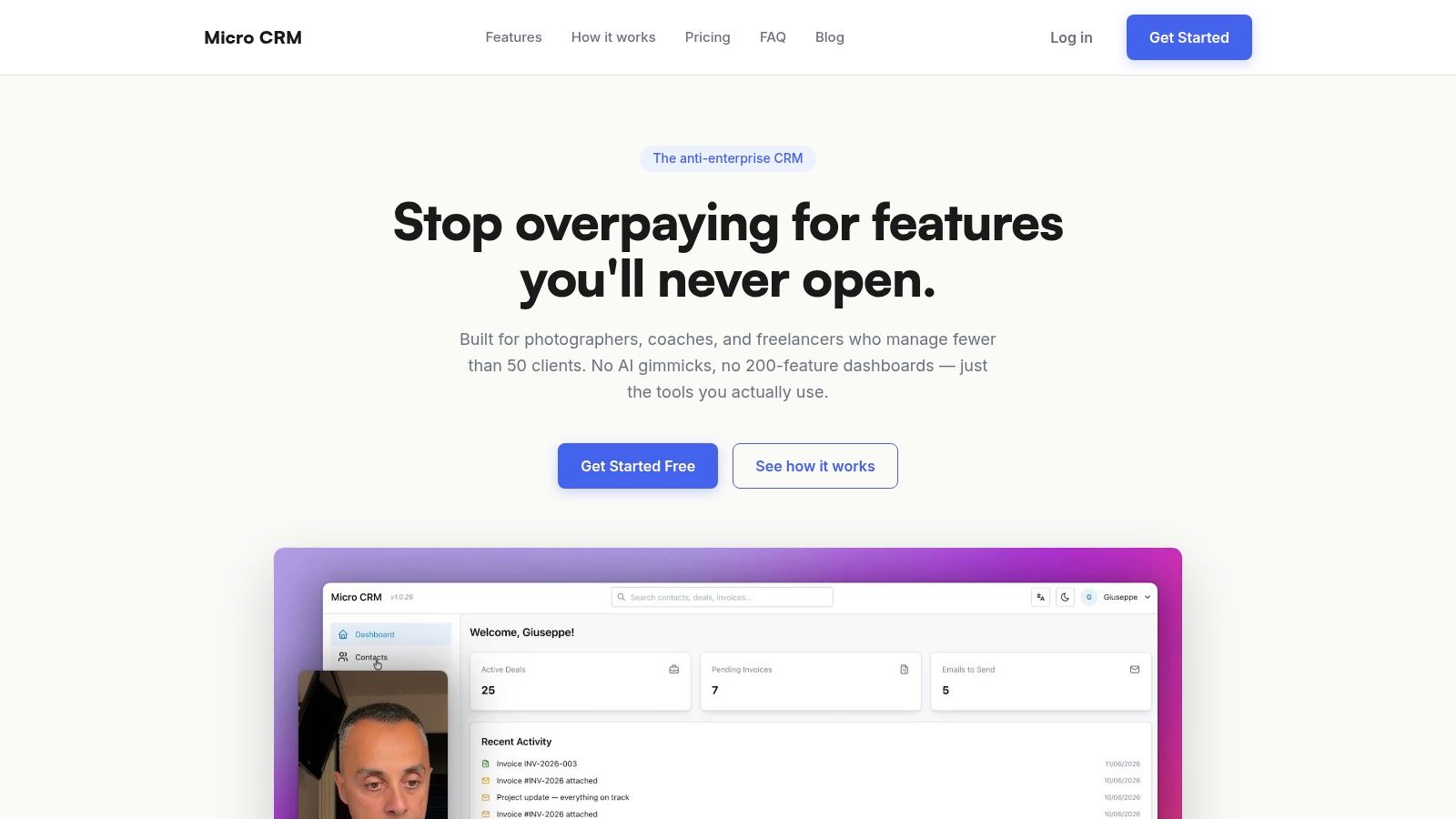
👉 Micro CRM keeps contacts, pipeline, invoicing, email sequences, and scheduling in a single lightweight workspace, which makes it easier to move from Gmail clutter to organized client management. If you're ready to stop juggling spreadsheets and inbox threads, visit Micro CRM and start for free, no credit card required.